Self-hosted Ghost on Oracle Cloud for free
A full guide for installing, configuring and running Ghost on a Oracle Cloud Infrastructure, for free use in production environments.
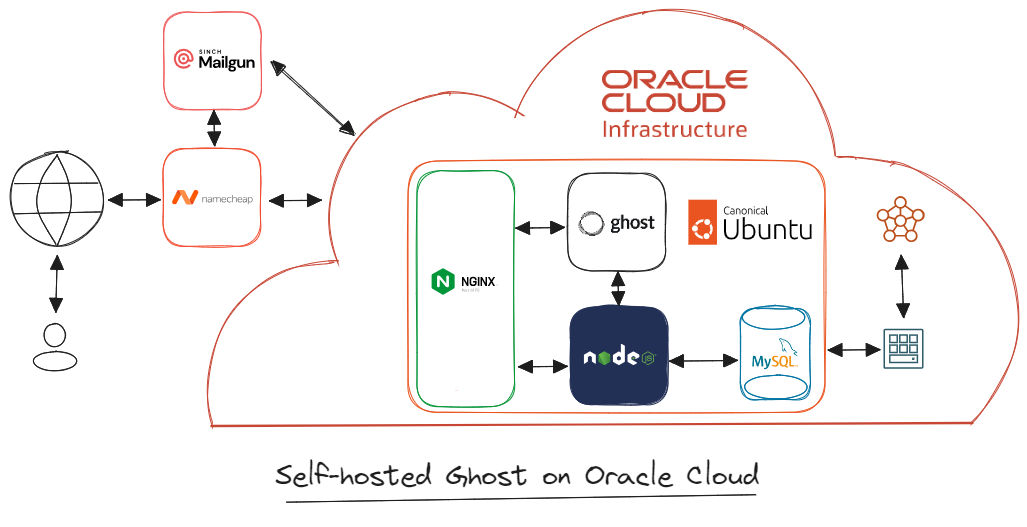
In search of fly.io alternative, a platform for running full-stack apps, where I self-hosted (within free allowances) a dozen Ghost platforms for different projects, I considered the following low-cost alternatives:
- Building a MaaS cloud with raspberry pi or AMD Ryzen 7600-series
- Spinning up a free e2-micro instance on Google Cloud
- Utilizing ARM Ampere A1 with 24GB memory and 200GB storage on Oracle
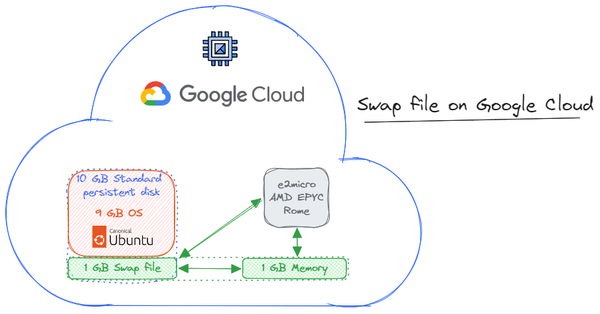
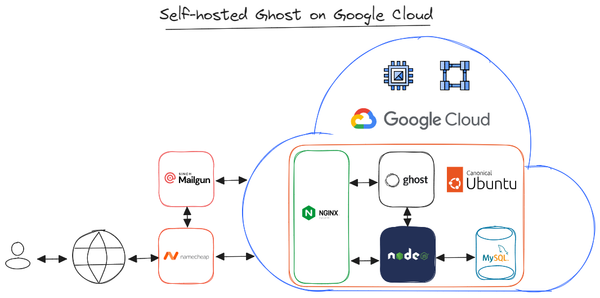
However, Metal as a Service was a nonstarter due to the rapid price depreciation of hardware and the need to maintain the server. Google Cloud offered a bit more resources within the free tier than fly.io, just enough to eliminate the “out-of-memory” errors from MySQL, and here you can read how I did it.
In this guide, I will describe how to install Ghost on Oracle on AMD Compute VMs (2.0 GHz AMD EPYC 7551 – Naples with 1GB memory), since the ARM Ampere A1 compute instances were impossible to get due to “out of host capacity” errors during the creation process.
Prerequisites
- Oracle Cloud free-tier account to host:
- Server (at least 1GB memory)
- Ubuntu 22.04 (or 16.04, 18.04, 20.04)
- NGINX (minimum of 1.9.5 for SSL)
- Node.js (see supported versions)
- MySQL 8
- Systemd
- Domain name pointing to the server's IP
- Bulk email delivery service for newsletters
1. Create Oracle Cloud account
1.1. Set up account
- Go to https://cloud.oracle.com >
Try OCI for free. - Click
Start for free> enter Account information > clickVerify email. - Enter
Cloud Account Name> e.g. 'ghost-free' - Enter Address information > click
Continue> enter Payment Verification > clickVerify payment> accept terms > click onSign in Oracle Cloud.- The payment verification might fail a few times, or throw an error due to
Too many requestsand you may need to experiment for some time
- The payment verification might fail a few times, or throw an error due to
- Don't worry about the payment information, Oracle won't charge you unless you go beyond the
always freeallowance. For personal assurance consider the next step: - Go to Billing and Cost Management > Budgets >
Create budget:- Name:
ghost-free-budget - Description:
oracle ghost free budget alert - Target Compartment:
ghost-free - Schedule:
Monthly - Budget Amount:
3.00
- Name:
- Budget Alert Rule
- Threshold Metric:
Actual Spend - Threshold Type:
Percentage of Budget - Threshold:
50 - Email Recipients:
your-email-address - Click
Create, this project will run on the free tier, nevertheless it is prudent to enable monitoring.
- Threshold Metric:
1.2. Spin up a web server
- Enter
instancesand select the top result in the Search bar, under Services:- Click
Create instance - Name:
ghost-free - Security: toggle on
Shielded instance - Image and shape > expand:
- click
Change image: selectUbuntu> check image nameCanonical Ubuntu 22.04 Always Free-eligible> clickSelect image- click Change shape: under Shape series select
Ampere> check Shape nameVM.Standard.A1.Flex Always Free-eligible> Number of OCPUs4> Amount of memory (GB)24> clickSelect shape
- click Change shape: under Shape series select
- Add SSH keys: save the private and public key
- Boot volume > check Specify a custom boot volume size > enter any value from 50GB up to 200GB, the total amount of free boot volume size across all instances on your account
- Check
Use in-transit encryption - Click
Create- Note: The creation process might fail with the following error: "Out of host capacity", if it happens consider changing the
Availability domainunder Placement, or reduce the number of OCPUs/memory, alternatively select the VM.Standard.E2.1.Micro Always Free-eligible.
- Note: The creation process might fail with the following error: "Out of host capacity", if it happens consider changing the
- Click
Create - The creation process might take a few minutes, once the instance is running, copy
Public IP
- Click
1.3. Configure Virtual Cloud Network
- Enter
virtual cloud networkin the Search bar and select the top result:- Click on link under name e.g.
vcn-12345678-1234 - Click on link under name e.g.
subnet-87654321-4321 - Click on link under name e.g.
Default Security List for vcn-12345678-1234 - Click
Add Ingress Rule - Source CIDR:
0.0.0.0/0 - Destination Port Range:
80 - Description:
Allow HTTP connections - Click
+ Another Ingress Rule - Source CIDR:
0.0.0.0/0 - Destination Port Range:
443 - Description:
ssl - Click
+ Another Ingress Rule - Source CIDR:
0.0.0.0/0 - Destination Port Range:
587 - Description:
mail server - Click
Add Ingress Rules
- Click on link under name e.g.
2. Get domain name and set up Mailgun
2.1. Register a domain name
- Go to https://www.namecheap.com > buy a domain. For example, ghostfree.com. Replace
ghostfree.combelow with your own domain name. - Click
Manage>Advanced DNS: - Then
Add new record: - Type:
A - Host:
@ - IP address: paste
Public IPaddress from Oracle > IP Address - Click >
Save all changes - Toggle on
DNSSEC
2.2 Set up email delivery system
- Go to https://www.mailgun.com > Get started for free > enter
Payment information> selectFoundation Trial - Click
Dashboard> go to yourProfile>Plan & Billing> click ⚙️ icon>Unsubscribeswitching toFlex plan(free, if you send less than 1,000 emails/month), more details at: https://help.mailgun.com/hc/en-us/articles/360048661093-How-does-PAYG-billing-work- - Go to
Sending>Domains> clickAdd new domain:- Domain name:
mg.ghostfree.com - Click
Add domain - DNS records > copy
SPF,DKIM,MXandCNAMErecords - Go to Namecheap > paste/create new records for Mailgun
- Go back to Mailgun >
Verify DNS records
- Domain name:
- Go to
Sending>Domain Settings>SMTP credentials> copy login emailpostmaster@mg.ghostfree.com> clickReset Password> save credentials in your password manager. - Go to your
Profile>API security> Mailgun API keys > click go to yourAdd new key> copy key and store in your password manager.
3. Install Ghost on Ubuntu
3.1. Set up VM instance
- Install SSH client > download PuTTY https://www.putty.org or MobaXTerm https://mobaxterm.mobatek.net:
- Open MobaXTerm > Sessions > SSH > enter:
- Remote host:
Public IPfrom Oracle - Specify username:
ubuntu - Advanced SSH settings: check
Use private key> openprivate keySSH file downloaded during the instance creation - Click
OK - Set a password for the root user:
sudo passwd - Switch to root user and authenticate:
su - Update Linux:
apt update && apt -y upgrade - To allow any updated services to restart, go back to Oracle Cloud,
StopandStartthe instance, thenSSHagain. - Open ports on webserver:
# HTTP:80 sudo iptables -I INPUT 6 -m state --state NEW -p tcp --dport 80 -j ACCEPT # HTTPS:443 sudo iptables -I INPUT 6 -m state --state NEW -p tcp --dport 443 -j ACCEPT # MAIL:587 sudo iptables -I INPUT 6 -m state --state NEW -p tcp --dport 587 -j ACCEPT # Save settings sudo netfilter-persistent save - Make a new user called
service_accountand grant it sudo:adduser service_account && usermod -aG sudo service_account - Set a password for
service_account. Leave default user information fields forservice_account. Confirm withY. - Switch to
service_account:su - service_account
3.2. Install Ghost dependencies
- Install Nginx and open the firewall:
sudo apt install -y nginx && sudo ufw allow 'Nginx Full' - Install
NodeJS:sudo apt update sudo apt install -y ca-certificates curl gnupg sudo mkdir -p /etc/apt/keyrings curl -fsSL https://deb.nodesource.com/gpgkey/nodesource-repo.gpg.key | sudo gpg --dearmor -o /etc/apt/keyrings/nodesource.gpg NODE_MAJOR=20 echo "deb [signed-by=/etc/apt/keyrings/nodesource.gpg] https://deb.nodesource.com/node_$NODE_MAJOR.x nodistro main" | sudo tee /etc/apt/sources.list.d/nodesource.list sudo apt update sudo apt install nodejs -y sudo npm install -g npm@latest - Install MySQL:
sudo apt install -y mysql-server - Clean up:
sudo apt -y autoremove - Stop the
snapdprocess to save on RAM:sudo systemctl stop snapd.service - Start MySQL in modified mode:
sudo systemctl set-environment MYSQLD_OPTS="--skip-networking --skip-grant-tables" sudo systemctl start mysql.service sudo mysql -u root - This will load the MySQL command line. Enter:
FLUSH PRIVILEGES; USE mysql; ALTER USER 'root'@'localhost' identified BY 'yourpasswordhere'; QUIT; - replacing
yourpasswordherewith your chosen MySQL root password. - Restart MySQL and switch to production mode. Run:
sudo systemctl unset-environment MYSQLD_OPTS sudo systemctl revert mysql sudo killall -u mysql sudo systemctl restart mysql.service sudo mysql_secure_installation - then configure as follows:
- Install validate password component? —
N - Remove anonymous users? —
Y - Disallow root login remotely? —
N - Remove test database and its privileges? —
Y - Reload privilege tables? —
Y
- Install validate password component? —
- Access MySQL:
sudo mysql -u root - This will load the MySQL command line. Enter:
CREATE USER 'user_site'@'localhost' IDENTIFIED BY 'yourpasswordhere'; CREATE DATABASE site_prod; GRANT ALL PRIVILEGES ON site_prod.* TO 'user_site'@'localhost'; FLUSH PRIVILEGES; QUIT; - replacing
yourpasswordherewith your chosen MySQL root password. - Turn off MySQL’s performance schema to reduce memory usage:
sudo nano /etc/mysql/my.cnf - then add the following lines at the bottom of the file:
[mysqld] performance_schema=0 - then
Ctrl-X>Y>Enterto save and quit. - Restart MySQL and log in:
sudo /etc/init.d/mysql restart sudo mysql -u root -p - Then in the MySQL command line, run:
show variables like 'performance_schema'; - Verify that the
performance_schemavariable is indeedOFF, thenquit;
3.3. Set up Ghost
- Install Ghost CLI:
sudo npm install ghost-cli@latest -g - Make a new directory called
ghost, set its permissions, then navigate to it:sudo mkdir /var/www/ghost sudo chown service_account:service_account /var/www/ghost sudo chmod 775 /var/www/ghost - Navigate to the website folder and install Ghost:
cd /var/www/ghost && ghost install - then configure as follows:
- Blog URL:
https://ghostfree.com - MySQL hostname:
localhost - MySQL username:
root - MySQL password: the password you set for
root - Ghost database name:
ghost_prod - Set up Ghost MySQL user? —
Y - Set up NGINX? —
Y - Set up SSL? —
Y, then enter your email - Set up systemd? —
Y- If you entered a value wrong, interrupt with
Ctrl + Cthen runghost setup, otherwise:
- If you entered a value wrong, interrupt with
- Start Ghost? —
Y
- Blog URL:
- Ghost is live at:
https://ghostfree.com/ghost
3.4. Set up Mailgun on Ghost
- While still inside
/var/www/ghost, run:sudo nano config.production.json - and update the
"mail"section as follows, using spaces (not tabs) to indent:"mail": { "transport": "SMTP", "options": { "service": "Mailgun", "host": "smtp.mailgun.org", "port": "587", "secure": false, "auth": { "user": "your-mailgun-username", "pass": "your-mailgun-password" } } }, - replacing
"your-mailgun-username"and"your-mailgun-password"with your Mailgun SMTP credentials and host domain. - Then
Ctrl-X>Y>Enterto save and quit. - Restart Ghost for the config to take effect:
ghost restart
4. Configure email newsletter
- Go to
https://ghostfree.com/ghost. Create your admin login credentials. - Customize your site > click ⚙️ icon > Email newsletter >
Mailgun settings> clickEdit:- Mailgun region:
US(from Mailgun > Domain Settings > SMTP credentials) - Mailgun domain:
mg.ghostfree.com - Mailgun Private API key:
your-API-key
- Mailgun region:
5. Future maintenance
5.1 Enable Ghost auto-start
- Cron job to restart Ghost, whenever the virtual machine restarts.
- From the home directory of
service_account, run:crontab -e - and press
1to select Nano as your text editor. - Paste the following into the cronfile:
@reboot cd /var/www/ghost && /usr/bin/ghost start - then
Ctrl-X>Y>Enterto save and quit.
5.2. Create maintenance scripts
- Create an update script in the home directory of
service_account:cd && sudo nano update-ghost.sh - Paste the following text into the update script:
#!/bin/bash sudo apt update && sudo apt -y upgrade sudo apt clean && sudo apt autoclean && sudo apt autoremove sudo npm install -g npm@latest sudo rm -r /usr/lib/node_modules/ghost-cli cd /var/www/ghost sudo npm install -g ghost-cli@latest sudo find ./ ! -path "./versions/*" -type f -exec chmod 664 {} \; ghost backup ghost stop ghost update ghost ls ghost start sudo reboot - then
Ctrl-X>Y>Enterto save and quit. - Make it executable:
sudo chown service_account:service_account update-ghost.sh sudo chmod 775 update-ghost.sh - In the future, to keep Ghost up date, open MobaXTerm:
- Connect to user session with
Public IPfrom Oracle.su - service_account ./update-ghost.sh - Note that
ghost backuprequires your Ghost admin credentials.
Conclusion
In this blog post, I have shown you how to install Ghost on OCI for free. By following these steps, you can create a self-hosted Ghost blog that is both powerful and affordable.
Additional notes
- Don't give up on provisioning A1 Ampere due to "out of capacity errors", follow the python guide below.
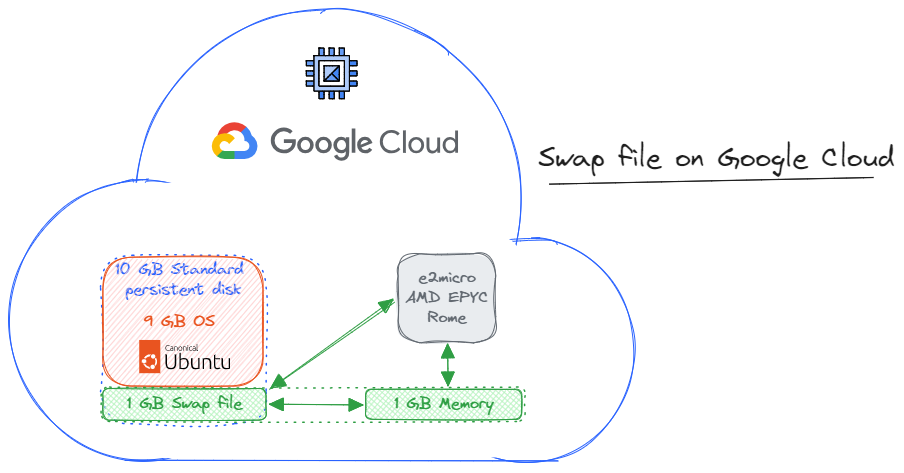
- To prevent out-of-memory errors try adding a swap space to your server.
- For more information on installing Ghost, please refer to the Ghost documentation and the following links 👇
References
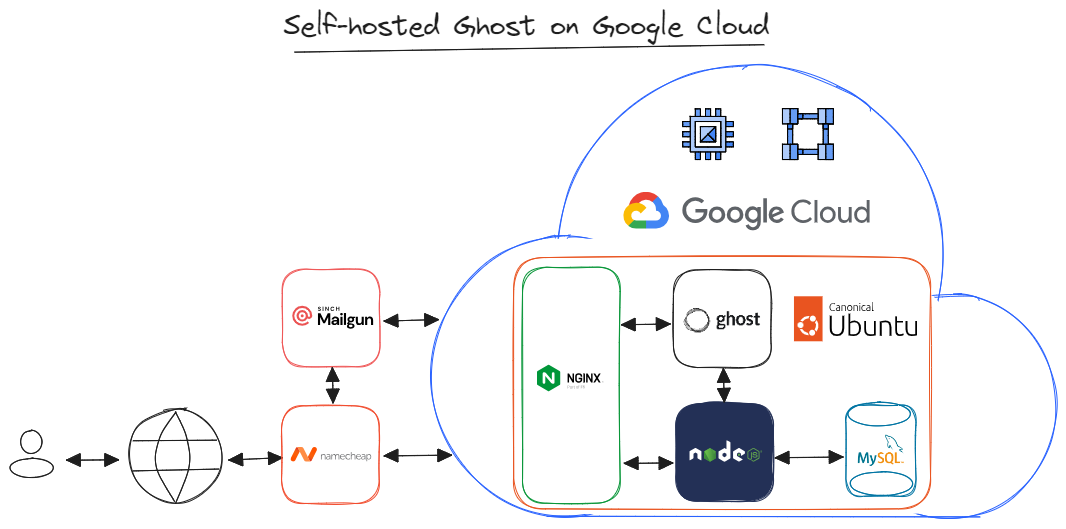
Ghost on Google Cloud

Ghost on Ubuntu
 Tri Nguyen
Swap file on Ubuntu